Using UnaGPT as Teachers – Test question in UnaGPT Playground
PrintThis guide helps teachers effectively use UnaGPT Playground to test your own question setup.
Use the UnaGPT Playground
The UnaGPT Playground allows teachers to test questions before adding them to an activity. It also supports OCR scans of questions and student answers for auto-grading and feedback.
Accessing the Playground
Click "Playground" from the left menu.
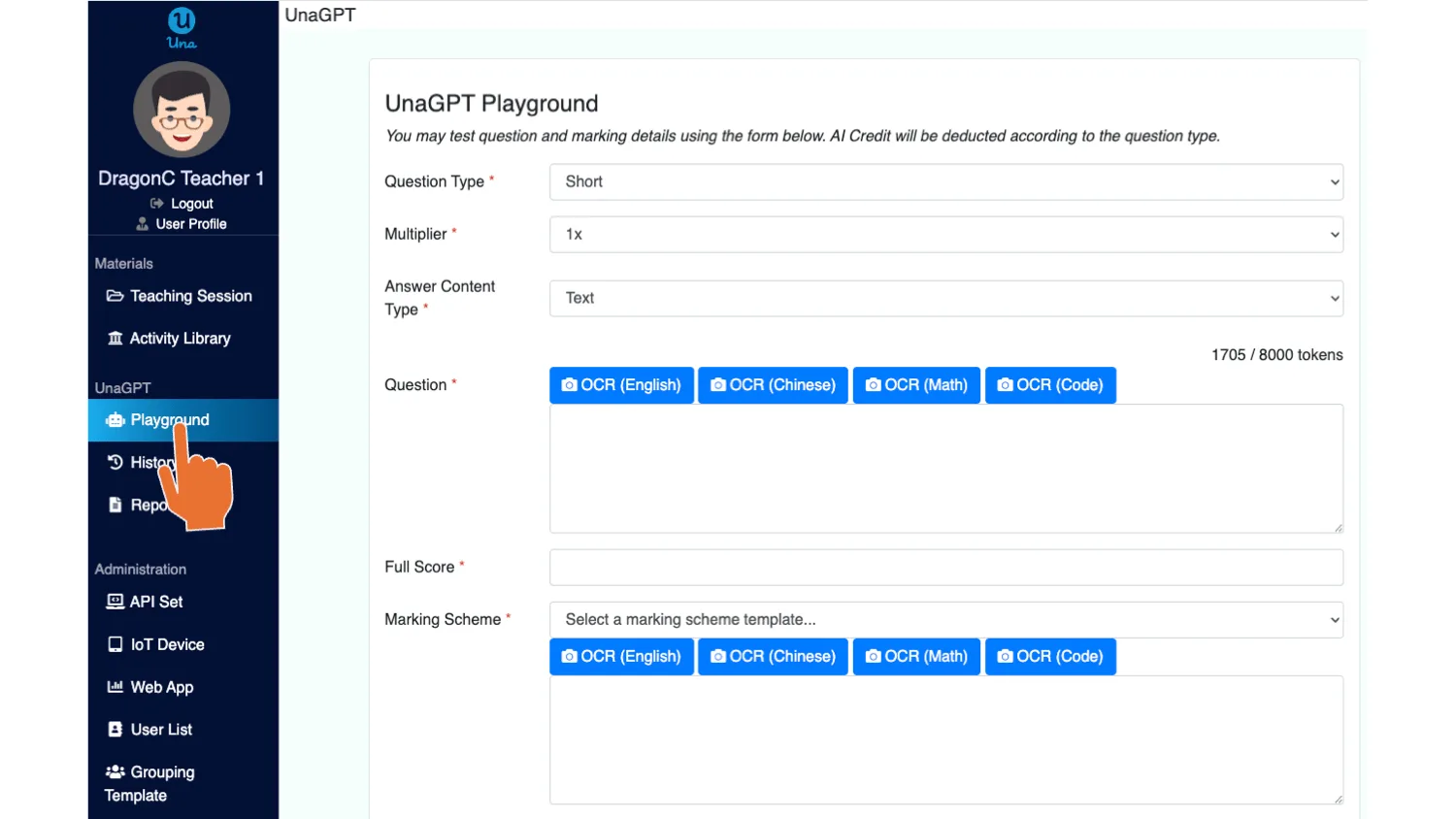
(When the Menu is collapsed, click on the robot icon.)

Configuring a Question
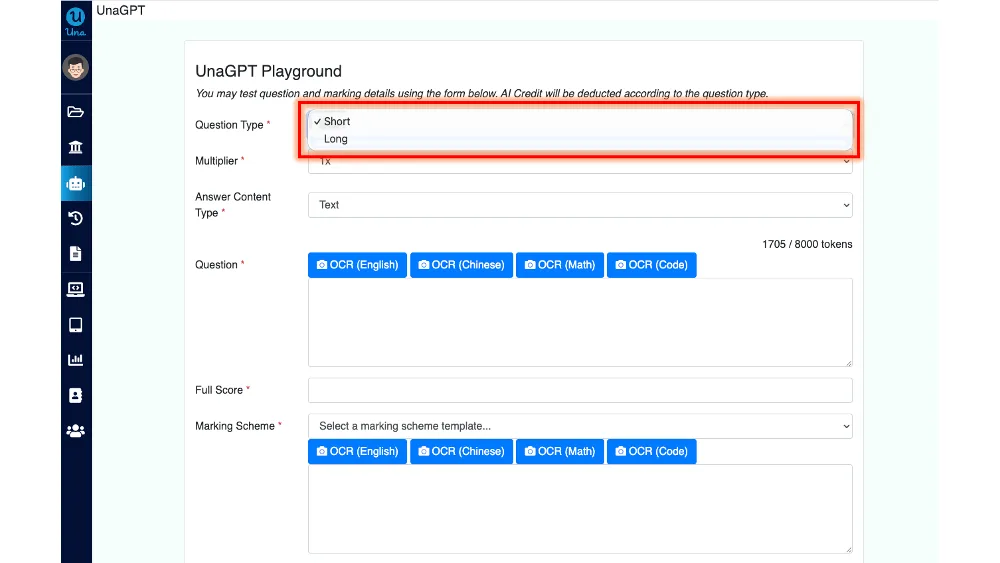
- Question Type: Select from the drop-down (Long/Short Question).
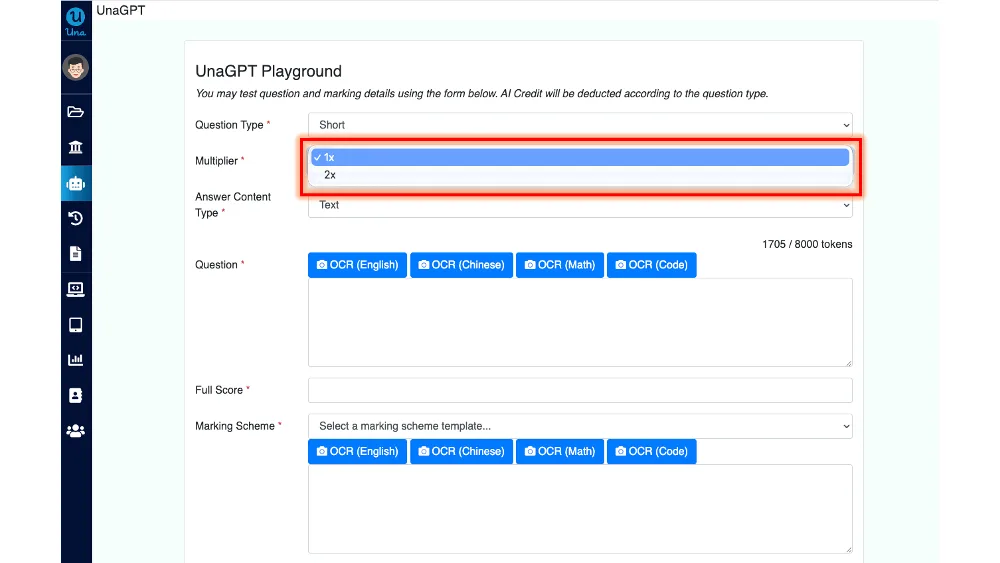
- Multiplier: Choose 1x or 2x to adjust how credits and token limits are applied.
- 1x: Standard setting — uses 1× credit with the default word and token limits.
- 2x: Enhanced setting — uses 2× credit but doubles the allowed word count and token limit for longer student answers.
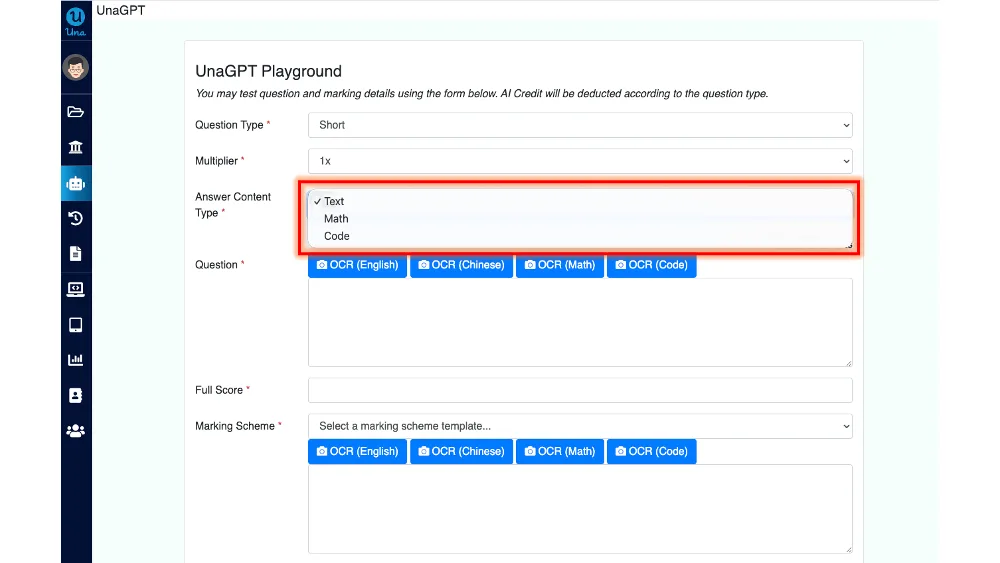
- Answer Content Type: Choose Text, Math, or Code.
- Word limit table for different types of question
| Question Type | Word Limit in the answer text field (Eng) | Word Limit in the answer text field (Chi) | Word Limit in the answer text field (Math) |
| Short question | ≈ 200 words | ≈ 150 Chinese characters | ≈ 200 Math characters (Within 10 steps) |
| Short question (x2) | ≈ 400 words | ≈ 300 Chinese characters | ≈ 400 Math characters (Within 20 steps) |
| Long question | ≈ 3333 words | ≈ 2500 Chinese characters | ≈ 1333 Math characters (Within 60 steps) |
Question Input
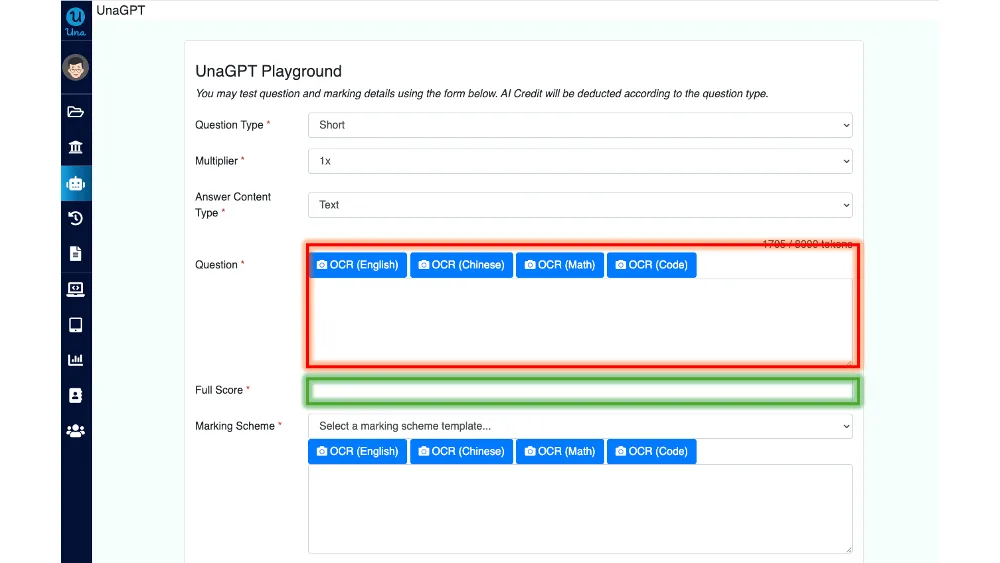
- Red Area:
- Method 1: Use OCR to convert a question image into text, or type/paste the question directly into the textbox.
- Method 2: Directly copy text/table from a Word file.
- Green Area: Enter the maximum score that can be attained.
Use OCR, typing, or pasting to input:
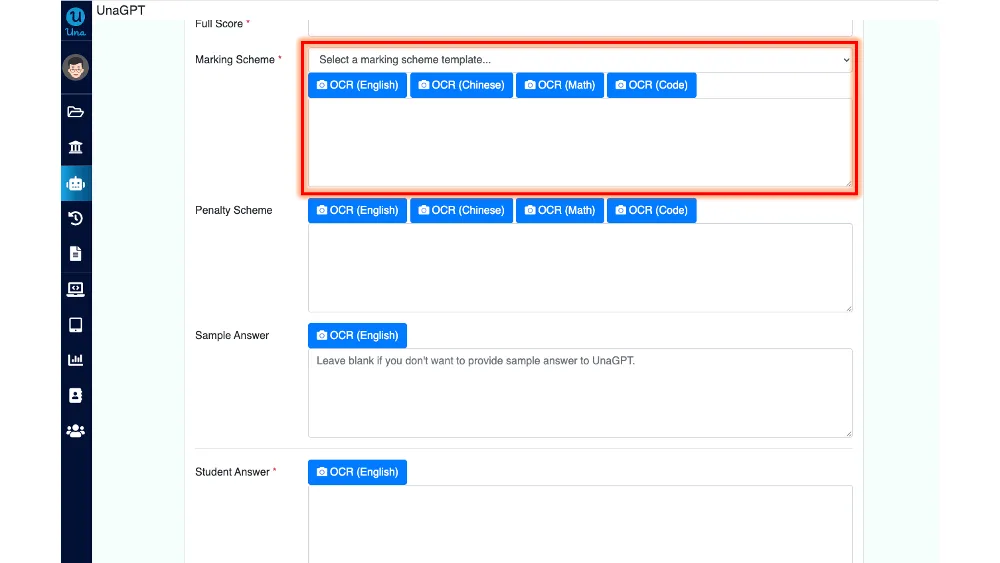
- Marking Scheme (template available)
- Penalty Scheme (optional)

Select:
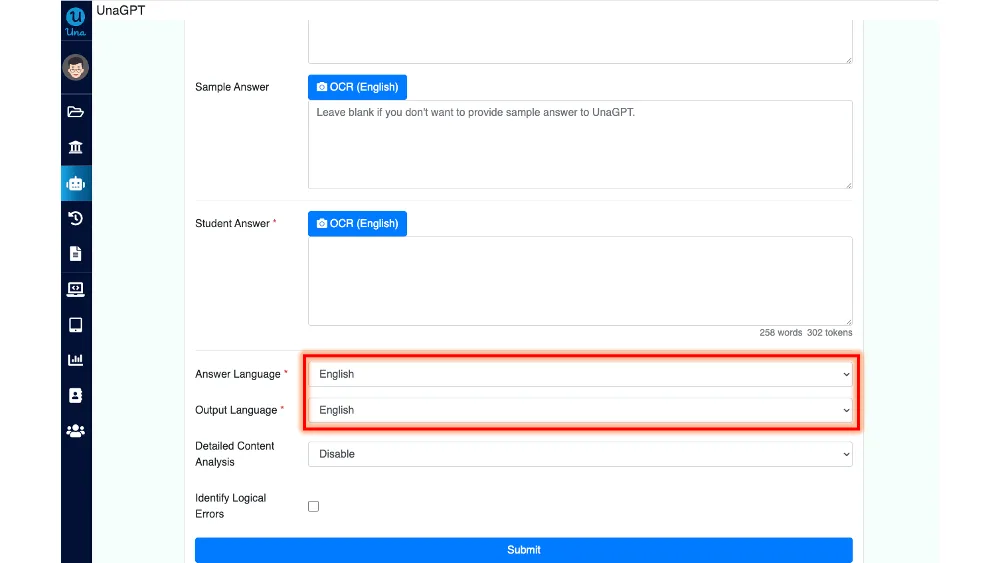
- Answer Language: English, Traditional Chinese, or Simplified Chinese.

- Output Language: Language for AI feedback (for teacher review).

Advanced Options
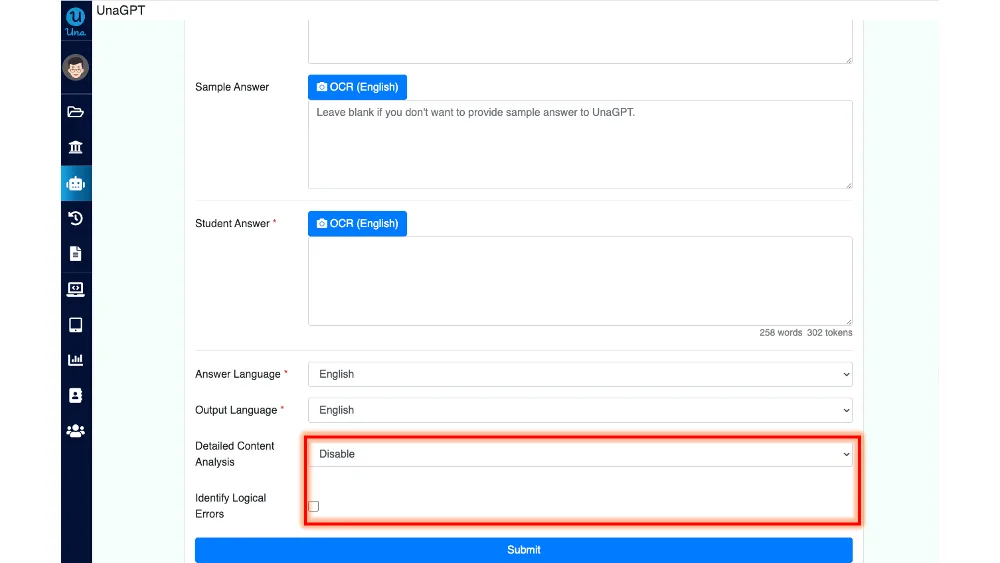
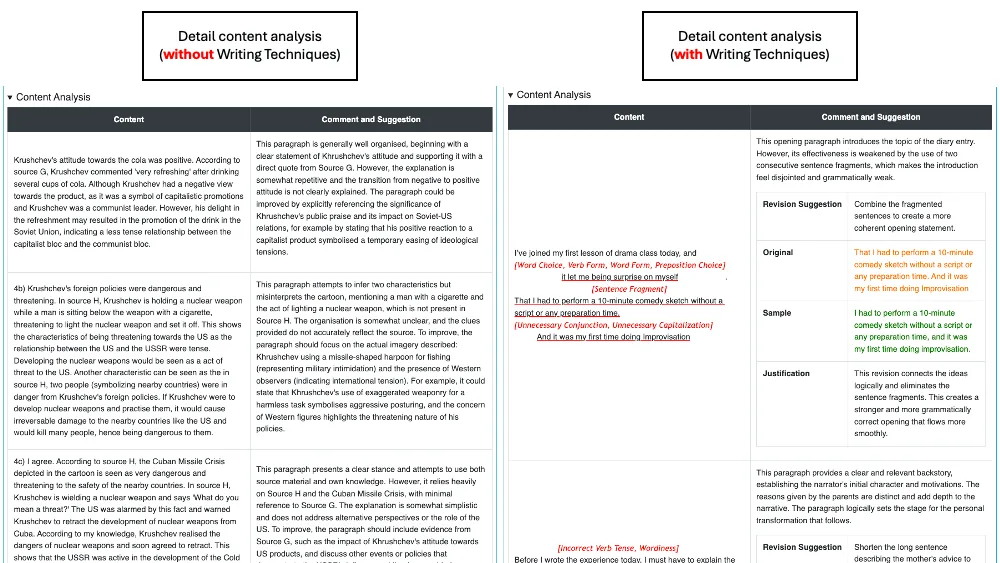
- Detailed Content Analysis:
- Enable: Provides AI comments per paragraph.
- Enable with Writing Techniques (Long question only): Includes suggestions, examples, and context analysis.

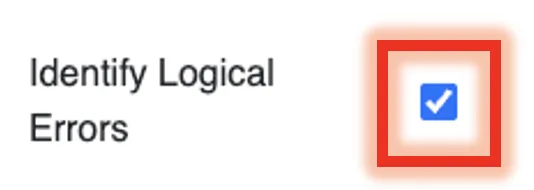
- Logical Error Detection: Enable via checkbox.
Suggestion:
- For English or Chinese writing exercise, enable Detail Content Analysis with Writing Techniques and Logical Error Detection.
- For normal short/long questions, enable Detail Content Analysis and Logical Error Detection.
- If you want a simpler output with only score and comment output, disable Detail Content Analysis.
Student Answer Input
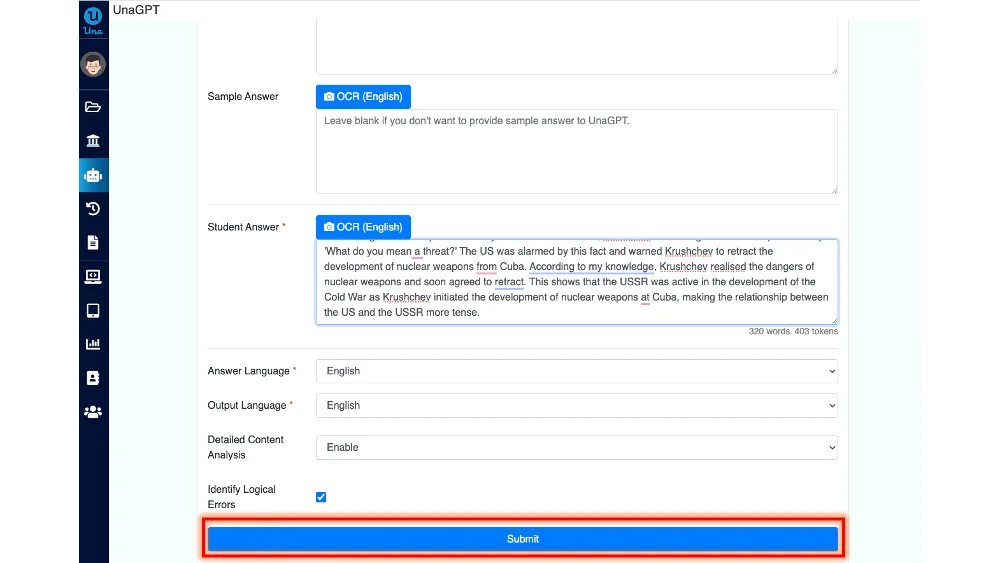
Type or use OCR to scan and input the student’s answer.
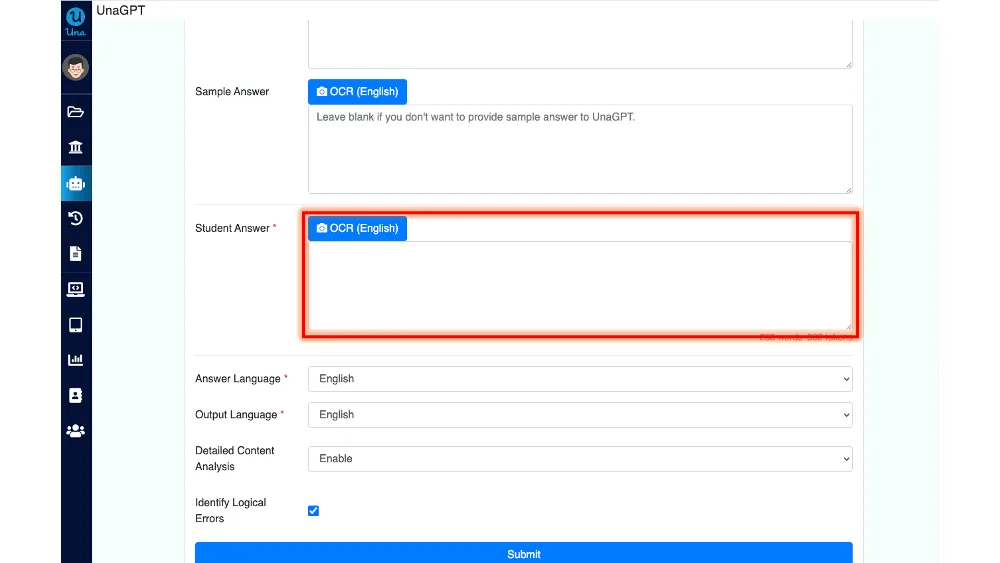
After reviewing all inputs, click “Submit” to send the data to UnaGPT.